In this short post I will explain you how to fix the issue, when the Supervisors can't send a text message to one of the monitored agents in Cisco Webex Contact Center. The supervisor complains, the he doesn't see the internal chat icon in his desktop. Here is an example of such a situation:

Let's resolve this problem quickly. First, check, if you set Send Messages = On in the Supervisor's User Profile. The example is below:

If this setting doesn't fix the issue then verify if the JSON file for your Agent/Supervisor desktop has the attribute "webexConfigured" = true. In the default Global Desktop Layout it is typically set to false and that's why the chat is not enabled. Set this attribute to true both for agent's and supervisor's part of the JSON file. Here you can see how it looks like for the supervisor JSON config:
"supervisor": {
"version": "0.1.0",
"appTitle": "Webex Contact Center",
"logo": "",
"stopNavigateOnAcceptTask": false,
"dragDropEnabled": false,
"notificationTimer": 8,
"maximumNotificationCount": 3,
"browserNotificationTimer": 8,
"wxmConfigured": true,
"desktopChatApp": {
"webexConfigured": true
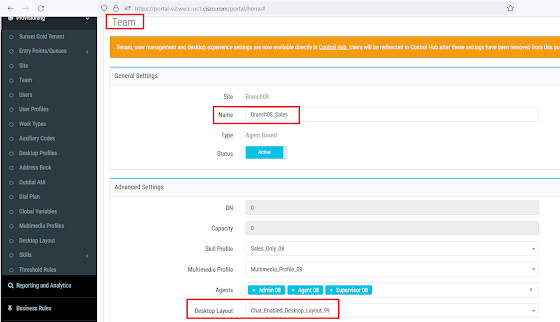
Apply your corrected Desktop Layout to the appropriate Team. Don't forget to set the team with this Desktop layout as Primary Team to the Supervisor, otherwise he will still use the default Global Desktop Layout:

If you do all these things, the result must be as follows:
If you do all these things, the result must be as follows:

Wish all of you a Merry Christmas and Happy New Year! All the best to you and your families!

It's such an interesting post. I really like it. You shared a really good information I appreciate it. Thank you and keep sharing.
ReplyDeleteSuccess in Cisco exams comes from consistent study, real lab practice, and mastering core concepts. Focused preparation, reliable resources, and hands-on experience build confidence and lead to strong, authentic certification results. Visit our website and collect your workbooks.
Thanks,
CCIE EI LAB WORKBOOK, CCIE SECURITY LAB WORKBOOK, CCIE DATA CENTER LAB WORKBOOK